Building Your Media Kit in Canva — Step-by-Step Guide and 5 Hidden Costs
Canva is the most popular DIY tool. Here's the complete step-by-step guide — and the 5 weaknesses that will measurably annoy you in real-world use.
Canva is by far the most popular tool for building a DIY media kit. Over 200 speaker and coach templates, drag-and-drop, looks high-end, many templates usable on the free plan. Sounds like the perfect solution — and for one-off applications it is.
This article shows you step by step how to build a media kit in Canva. Including the spots where most users give up, plus an honest analysis of the weaknesses that bite in practice. By the end you'll know whether Canva is enough for your use case — or where you should switch to other tools.
Step 1: Find and select your Canva template
Go to canva.com → search "Media Kit" or "Press Kit" → select "Templates." You'll get 200+ results immediately.
What to watch for:
- Format: A4 PDF (for print + email attachment) or Pinterest pin / Instagram story (for social media)? A4 is standard for serious applications.
- Style: Minimal, editorial, bold-color, lifestyle. Pick what fits your brand — not what looks hippest.
- Sections: Some templates are 4 pages, others 12. You want at least 8–10 sections of space (bio, topics, press quotes, packages, press photos, references, contact).
Common mistake: You pick a beautiful 4-page mini template and realize later you can't fit press quotes anywhere.
Step 2: Adapt sections — bio, topics, press quotes
Double-click the text → type your content. Sounds easy, mostly is — almost.
Tips for the bio section:
- Maximum 100 words, ideally 50–70
- Writing style: 3rd person ("Sarah Weber is…"), not 1st person ("I am…")
- Mention top 3 references in the first 2 sentences
- Avoid buzzwords ("Visionary Thought Leader" convinces nobody)
Tips for speaking topics:
- Per topic: title + 1-sentence description + format tag (Keynote/Workshop/Panel)
- Maximum 6 topics — more is choice paralysis
- If template layout only shows 3 topics, add more boxes (Canva: duplicate element with Cmd+D / Ctrl+D)
Tips for press quotes:
- Format: quote + source + date
- 3–4 strong quotes beat 8 weak ones
- If you have no press quotes yet: skip the section instead of filling with "Coming soon"
Step 3: Add logos and press photos
Usually the fiddly part.
Upload logos:
- Click "Uploads" in the left sidebar
- Drag-and-drop your logo files (PNG with transparent background ideal)
- Drag the logo into your layout
- Adjust size + position
Press photos:
- Upload high-res photos (min. 1200×1500 px for A4 print)
- When inserting: watch aspect ratio — otherwise the photo distorts
- For headshot section: consistent style across all photos (all color or all B&W, not mixed)
Common mistake: You grab logos from somewhere on the internet (Google Image Search). Some have backgrounds, some are wrong resolution. Invest 10 min and find logos in the press pool of each brand (Microsoft, Google etc. have official brand asset pages).
Step 4: Adjust branding (colors, fonts)
Canva templates come with their own color schemes — adapt them to your brand.
Colors:
- Top right: "Styles" or "Branding"
- If you have Canva Pro: apply your brand kit (1 click)
- Free plan: click each color box individually and enter hex code of your brand color
Fonts:
- Choose maximum 2 fonts: one for headlines, one for body
- Canva has 1,000+ fonts, but not all look good in PDF export
- Tip: Stay with system fonts (Helvetica, Inter, Georgia) for maximum compatibility
Common mistake: You pick a fancy script font for the main headline. Looks great in Canva, in PDF export some readers fall back to a default font. Test premium fonts in PDF first.
Step 5: Export as PDF — the most common pitfalls
You're done with design — now export.
Process:
- Top right "Share" → "Download"
- File type: "PDF Standard" for web/email, "PDF Print" for high-res printing
- On free plan: Some templates have watermark → buy Pro or use a different template
- On Pro plan: No watermark, all fonts and images embedded
Pitfalls:
- Fonts not embedded: On some PDF readers (older Acrobat versions) your font is replaced by system fallback → layout breaks
- File size: Media kits quickly become 30+ MB. Organizers with limited mailbox quotas don't appreciate this. Compress with Smallpdf or iLovePDF to <10 MB.
- No interactive form: PDFs are static. Want a booking inquiry form built in? Not possible.
Canva media kit: pros vs. cons
| Aspect | Pro | Con |
|---|---|---|
| Look | High-quality templates, drag-and-drop | Often looks "Canva-typical," hard to individualize |
| Speed | Done in 1–2 hours | If done right: 4–8 hours |
| Cost | Free plan works for simple kits | Premium templates require Pro (~$13/month) |
| Updates | Editable in any browser | Every change = re-export + re-send |
| Multilingual | — | Duplicate file per language, double maintenance |
| Tracking | — | No tracking, you don't know who opens |
| Booking form | — | PDFs are static, no form possible |
| SEO | — | PDF in email attachment is invisible to Google |
| GDPR | Canva is EU-compatible | Data lives on US servers (Standard Contractual Clauses) |
| Mobile optimization | — | A4 PDF on phone unreadable (zoom action needed) |
5 weaknesses that bite in practice
We see daily speakers and coaches who started with a Canva media kit and switch frustrated after 6 months. The five most common reasons:
1. Updates: every mini-change = re-export + re-send
You added a new talk. You want it in the media kit. Realistic:
- Open Canva, find file → 2 min
- Add talk, format tag, description → 5 min
- Re-export PDF → 1 min
- Email your top 20 booking contacts with "new version attached" → 10 min
Per update 18 min — and after the third update you stop doing it. Old version stays in circulation, new talk isn't in your media kit, you lose inquiries that would have come for exactly that.
2. No live tracking (you don't know who opens it)
You send your PDF to a booker. A week of silence. You don't know:
- Did they even open it?
- If yes, how long were they on it?
- Did they forward it, to whom?
- Which sections did they look at?
With a live URL (with built-in tracking) you see all of that. That's marketing basics — not possible with a PDF.
3. Static PDF — no booking inquiry form built in
An organizer reads your PDF, is convinced, wants to book. What do they have to do?
- Open mail client
- Copy your address from the PDF
- Compose mail ("Hi, I read your media kit…")
- Send, wait
That's a lot of friction. With an integrated booking form they click the button, fill 5 fields, done. Conversion rate difference: typically 3–5×.
4. Multilingual = duplicate file = double maintenance
You work internationally and need your media kit in English and German. In Canva:
- One file EN
- One file DE (Copy + Translate)
- Every update: touch both files
- Export both
- Send both (to different contacts)
Each additional language (French, Spanish) doubles the maintenance again. At mediakitpro you have one source, one language toggle, one update for all 8 languages.
5. Canva Pro costs — but doesn't give you booking/SEO/tracking features
If you want premium branding kit, premium templates, and HD export, you need Canva Pro = $12.99/month = $156/year. What you do NOT get for that:
- Booking form
- Live tracking
- SEO optimization
- Multilingual without file duplication
- Hosting on your own URL
$156/year for Canva Pro = roughly one year of mediakitpro Pro ($156/year). If you're going Pro anyway, the question isn't "Canva or mediakitpro" but "Canva as design tool or mediakitpro as complete solution."
When Canva is still the right choice
We're not Canva-haters. There are use cases where Canva is the right pick:
- One-off application: You're applying for a specific conference, media kit is required attachment, won't be needed again. Canva PDF is fine.
- Quick mockup for visualization: You're brainstorming what should be in your media kit. Canva as visual sketch makes sense.
- Print media kit for live event: Want to lay out physical media kits at a trade show booth? A nice PDF is perfect.
When you need something else
In all other cases we see concrete pain points Canva doesn't solve:
- You want regular bookings (>5/year)
- You work in multiple languages (EN + something minimum)
- You need tracking (who opens, where traffic comes from)
- You need an integrated booking inquiry form
- Your media kit must be readable on phone (bookers often scan mobile!)
- You want your media kit found by Google (passive lead gen)
In all these cases a live URL with built-in functionality is significantly superior. See it live.
Conclusion
Canva is a good design tool for static PDF documents. It is not a good tool for a modern, live media kit. If you want bookings in 2026, you need a live URL with tracking, booking form, and multilang support — Canva doesn't offer this.
Concrete recommendation:
- Need a media kit for a one-off application → Canva is OK
- Want a media kit as a regularly-used marketing asset → switch to a live solution
If you're still unsure what belongs in your media kit, here's the complete checklist with 18 must-have sections. To compare different solutions, our platform test. To see what Canva DIY costs in money + time vs. designer vs. SaaS tool, the honest cost comparison.
Want to try it without installing Canva or hiring a designer? Free plan, no credit card — in 10 min you have a complete media kit live.
On this page (15)
- Step 1: Find and select your Canva template
- Step 2: Adapt sections — bio, topics, press quotes
- Step 3: Add logos and press photos
- Step 4: Adjust branding (colors, fonts)
- Step 5: Export as PDF — the most common pitfalls
- Canva media kit: pros vs. cons
- 5 weaknesses that bite in practice
- 1. Updates: every mini-change = re-export + re-send
- 2. No live tracking (you don't know who opens it)
- 3. Static PDF — no booking inquiry form built in
- 4. Multilingual = duplicate file = double maintenance
- 5. Canva Pro costs — but doesn't give you booking/SEO/tracking features
- When Canva is still the right choice
- When you need something else
- Conclusion
Visibility tips, delivered to your inbox
One actionable tip every 2 weeks for speakers, coaches and consultants. Unsubscribe anytime.
You might also like
Build a Professional Media Kit in 30 Minutes — Step-by-Step
30 minutes sounds too short for a professional media kit. With the right order and the right tool, it's realistic — here's the exact sequence step by step.
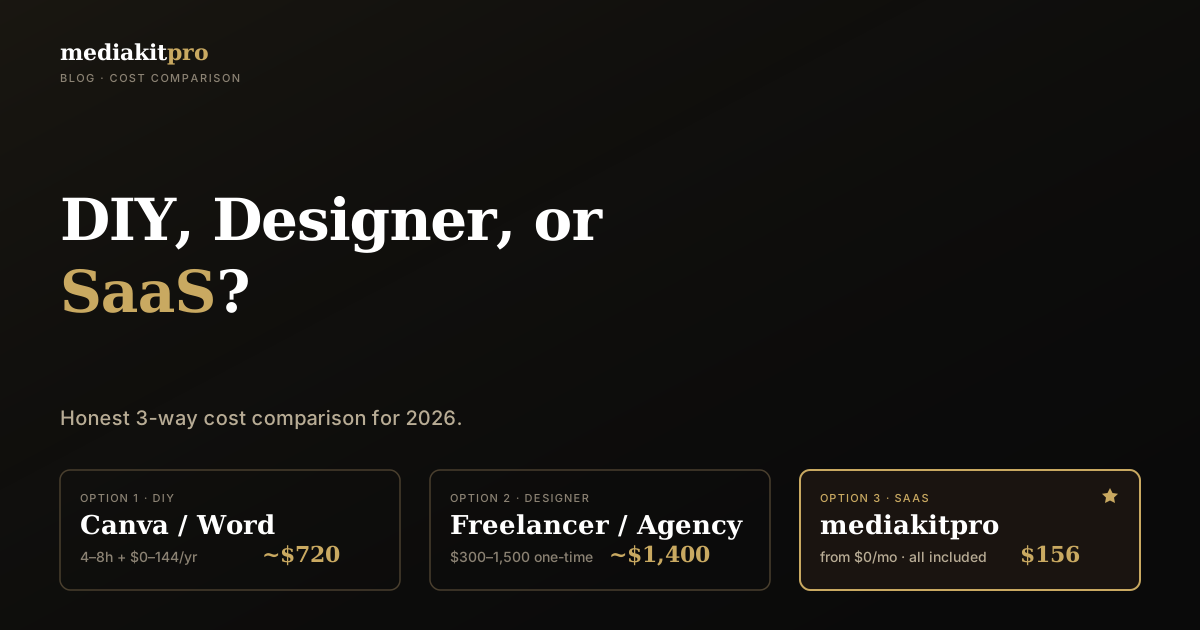
DIY vs. Designer vs. SaaS — The Honest Cost of Building a Media Kit
DIY, designer, or SaaS? Three paths, three price tags — and hidden costs nobody talks about. With three persona case calculations and a clear answer per profession.
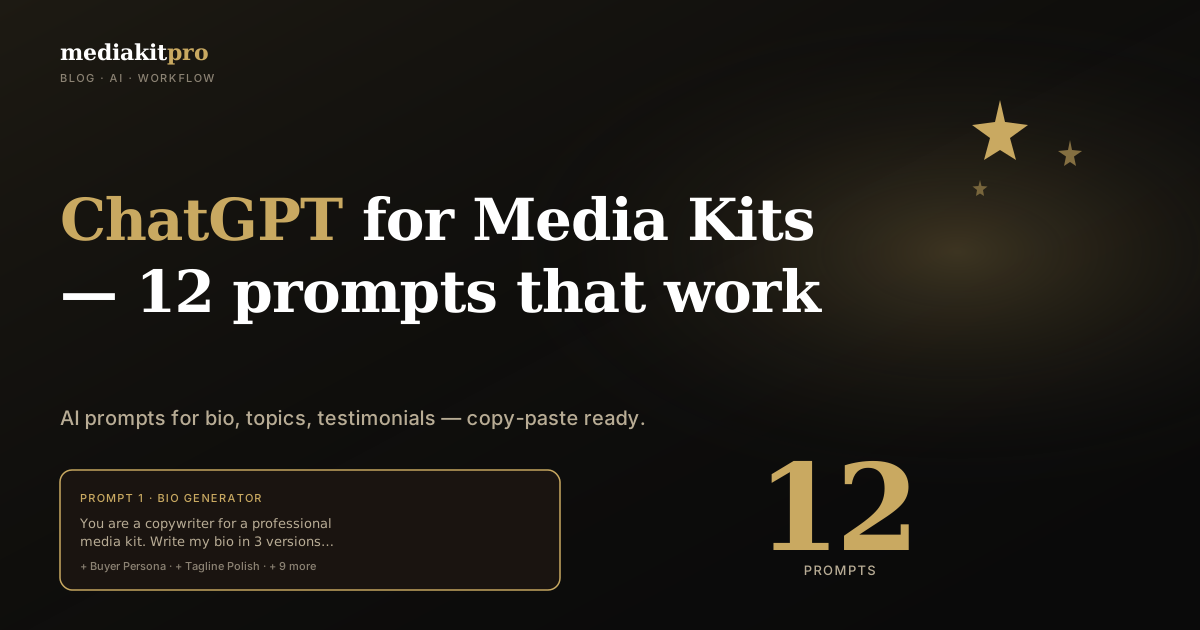
ChatGPT for Media Kits — 12 Prompts That Actually Work
AI is the best tool right now for media kit content. 12 ready-to-use ChatGPT prompts to copy — for bio, speaking topics, testimonial polishing, and more. Plus the most common pitfalls.